Blood Pressure Monitor Won't Sync? Fix Bluetooth Problems
If your blood pressure monitor will not sync, use these Bluetooth checks to protect saved readings, reconnect the app, and know when to contact support.
If your blood pressure monitor will not sync, use these Bluetooth checks to protect saved readings, reconnect the app, and know when to contact support.
If your blood pressure monitor won’t sync, protect the readings you already have before resetting anything. A Bluetooth or app problem usually affects data transfer, not the measurement shown on the monitor. Write down important results, confirm that you are using the correct app and profile, then work through permissions, power, distance, and pairing in that order.
Do not start with a factory reset. It may erase onboard history, user assignments, date and time settings, or an app connection you could have repaired more simply. Your monitor’s manual and support page are the final authority because pairing steps vary by model.
Why your blood pressure monitor won’t sync
A Bluetooth monitor has to complete several separate steps. The monitor takes a reading, stores it locally if memory is available, sends it over Bluetooth, and lets the phone app attach it to an account or user profile. A failure at any one step can look like “sync not working.”
Common causes include:
- Bluetooth is off on the phone
- the app does not have Bluetooth or nearby-device permission
- the monitor is paired with another phone or account
- the wrong user profile is selected
- the monitor or phone has weak power
- the two devices are too far apart
- the app is closed, outdated, or signed out
- the monitor’s clock is wrong, making new readings appear under an unexpected date
- onboard memory is full or the reading was taken in guest mode
- the monitor was paired through the phone settings when its manual requires pairing inside the app
A completed reading that remains visible on the monitor is not automatically inaccurate because the app failed to receive it. The problem is recordkeeping: you may lose the timestamp, trend view, notes, or export unless you preserve the number another way.
Pairing and syncing are not the same problem
Pairing creates the Bluetooth relationship between the monitor and phone. Syncing transfers readings after that relationship exists. Knowing which step failed can keep you from deleting a working connection.
| What you see | Likely issue | First useful check |
|---|---|---|
| Phone never finds the monitor | Pairing, permissions, distance, or monitor mode | Open the correct app and follow the manual’s pairing sequence |
| Monitor appears connected but no readings arrive | Sync, profile, app, or memory issue | Check the selected user and look for a manual sync command |
| Old readings sync but the newest one does not | Guest mode, storage, timestamp, or incomplete transfer | Write down the result and inspect the monitor history |
| Readings appear under the wrong person | User-profile mismatch | Stop syncing and verify User 1, User 2, and the app account |
| Connection worked before but suddenly stopped | App update, phone update, power, or stale connection | Restart the app and devices before removing the pairing |
Do not assume a Bluetooth symbol means the transfer finished. On some monitors it indicates pairing mode, an active connection, or data waiting to send. Check the symbol definition for your exact model.
Fix a blood pressure monitor that will not sync
Use one change at a time so you know what solved the problem.
1. Save the reading outside the app
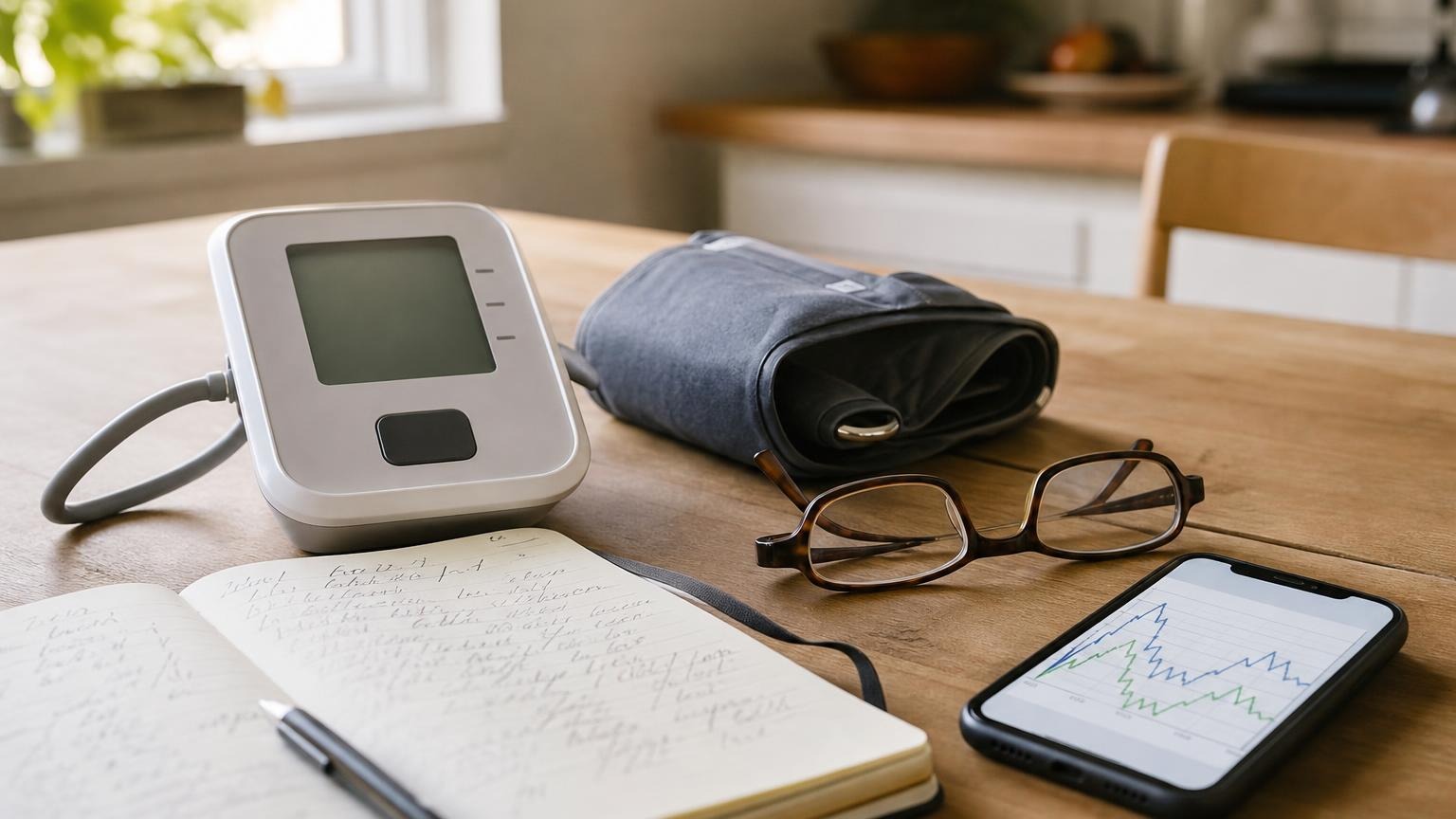
Photograph the display or write down the date, time, systolic number, diastolic number, pulse, arm, and user profile. If the monitor stores history, confirm the result appears there before turning to reset options.
If storage is already at its limit, see our guide to a blood pressure monitor with full memory. Preserve useful history before clearing it.
2. Confirm the correct app and account
Use the app named in the monitor’s manual or manufacturer support page. Similar product names can have separate apps, and an old app may no longer support a newer model. Make sure you are signed into the expected account and that the correct monitor model and household user are selected.
For shared devices, confirm who is assigned to each hardware profile. Our guide to sharing a blood pressure monitor explains why mixed profiles can produce a misleading history even when every individual reading transferred correctly.
3. Check phone permissions
Turn on Bluetooth, then open the phone’s settings for the monitor app. Depending on the phone and operating system, the app may need permission for Bluetooth, nearby devices, notifications, or background activity. Location permission may also be requested on some older phone-and-app combinations.
Grant only the permissions the official app reasonably needs. If a permission request seems unrelated or excessive, check the manufacturer’s current instructions rather than approving it blindly.
4. Check power and distance
Place the phone close to the monitor without stacking it on the cuff or tubing. Replace weak monitor batteries with the type listed in the manual, or use the approved adapter if supported. Charge the phone enough that battery-saving mode is not suspending Bluetooth or background activity.
Do not mix battery types or combine old and new batteries. If the monitor also flickers, shuts down, or struggles to inflate, solve the power problem before judging the connection.
5. Restart without erasing data
Close and reopen the app. Turn the monitor off, wait briefly, and start it again according to the manual. Restart the phone if the app still cannot find the monitor. Then open the app first and use its sync or add-device command.
Some monitors send automatically after a reading. Others require a memory button, sync button, Bluetooth mode, or a specific screen. Follow the model instructions instead of repeatedly pressing controls.
6. Re-pair only after checking the manual
If a normal restart fails, the manual may direct you to remove the monitor from the app or phone Bluetooth list and pair it again. Before doing that, confirm that important readings have synced, been photographed, or been written down.
Pair through the official app if that is what the manufacturer specifies. Pairing first through the phone’s general Bluetooth menu can create a connection the app does not recognize on some models.
What not to do when Bluetooth fails
Avoid fixes that create a bigger data problem:
- do not factory-reset the monitor as the first step
- do not delete the app before confirming whether its data is backed up
- do not clear monitor memory before preserving important readings
- do not create several accounts while testing the same device
- do not mix two people’s readings in one profile
- do not keep retaking blood pressure only to force a sync
- do not download an unofficial app that asks for unnecessary personal information
Bluetooth convenience should not control your measurement technique. Take readings while seated, rested, quiet, and correctly positioned, even if you plan to troubleshoot the transfer afterward. Use our accurate home blood pressure guide for the measurement routine itself.
When to use a manual log or contact support
Use a paper or simple digital log while the connection is unreliable. Record enough context that you can still discuss the pattern with a clinician. A temporary sync failure is inconvenient, but it should not force you to abandon useful home monitoring or take repeated extra measurements.
Contact the manufacturer when:
- the official app does not list your monitor model
- the same pairing error returns after the documented steps
- readings repeatedly go to the wrong profile
- the monitor loses its date and time whenever power changes
- Bluetooth disconnects immediately on more than one compatible phone
- the app or monitor asks for a reset that could erase needed history
- the device also has power, memory, display, or inflation problems
Have the monitor model number, phone model, operating-system version, app version, and exact error message ready. Support can usually diagnose a compatibility issue faster with those details than with “Bluetooth is broken.”
Frequently asked questions
Q: Why is my blood pressure monitor connected but not syncing readings?
A: The Bluetooth pairing may still be active while the app, user profile, permissions, memory, or manual sync step is blocking transfer. Confirm the correct account and user, preserve the reading, then follow the model-specific sync instructions before removing the pairing.
Q: Will resetting Bluetooth delete my blood pressure readings?
A: Removing a Bluetooth pairing may leave onboard readings intact, but a factory reset or memory-clear command may not. The effect varies by model. Save important results and check the manual before choosing any reset option.
Q: Should I pair my blood pressure monitor in phone settings or in the app?
A: Follow the manufacturer instructions. Many health-device apps expect you to add the monitor from inside the official app. Pairing it first in the phone’s general Bluetooth menu can interfere with setup on some models.
Q: Does a failed sync mean the blood pressure reading is wrong?
A: Not necessarily. If the monitor completed the measurement normally and displayed a result, the sync failure may affect only transfer and storage. Keep the number with context, fix the connection separately, and do not change treatment based on one reading.
Q: Can two phones sync with the same blood pressure monitor?
A: Some models support multiple accounts or phones, while others remember only one primary connection. Check the manual before adding another phone, and make sure each person’s readings stay in the correct profile.
Bottom line
When a blood pressure monitor will not sync, save the reading first. Verify the official app, account, user profile, permissions, power, and pairing sequence before deleting data or resetting the monitor. Treat Bluetooth as a recordkeeping feature, not proof that a reading is valid or invalid.
If the documented steps fail, keep a manual log and contact the manufacturer with exact model and software details. A monitor with unreliable syncing can still be usable as a standalone tool if it measures normally, stores or displays results dependably, and fits your logging needs—but persistent device problems deserve support or replacement.
This article is educational and not medical advice. Consult a qualified clinician before making treatment decisions or changing medication based on home readings.
Top 5 picks
Best Blood Pressure Monitors For Seniors 2026
Five upper-arm monitors ranked with published scorecards—setup friction, comfort, readability, power convenience, and repeatable accuracy—so you can compare models before you buy.
See our Top 5 blood pressure monitor picksHome-monitoring advice is only useful if it is easy to verify and act on correctly.
We write explainers to be understandable to readers, search engines, and AI answer systems.
Compare our Top 5 blood pressure monitor picks for 2026, then track readings over time with consistent technique.